

What you can do with the Userbrain MCP
Once connected, your AI assistant can:
List your tests: Get an overview of every usability test in your account, including each test's name, status, target URL, video count, and language.
Look up a specific test: Pull up a test's details and the task instructions given to testers.
Read your insights: Get the key findings Userbrain surfaced from analyzing videos.
Review tasks: See the exact instructions testers were given for any test.
List tester sessions. Get the recorded videos available for a test.
You can ask in plain language, for example:
"Show me all my Userbrain tests."
"What are the main insights from my checkout test?"
"What tasks did testers get in my onboarding test?"
Your AI assistant picks the right tool automatically and summarizes the results for you.
Before you start
You'll need:
An existing Userbrain account with at least one test.
An MCP-compatible AI tool, such as Claude or ChatGPT.
Optional: The Userbrain MCP server URL:
https://mcp.userbrain.com/mcp
If your company has already added the Userbrain connector for everyone, you can skip straight to Connecting when your admin already added Userbrain below.
Connecting
How to connect Userbrain to ChatGPT
Userbrain is available as an official app in the ChatGPT apps directory, so there's no manual connector setup needed.
Open the Userbrain app page in ChatGPT. You can also find it by searching "Userbrain" under Settings > Apps & Connectors in ChatGPT.
Click Connect and log in to Userbrain when prompted to authorize access. This uses OAuth, so your Userbrain password is never shared with ChatGPT.
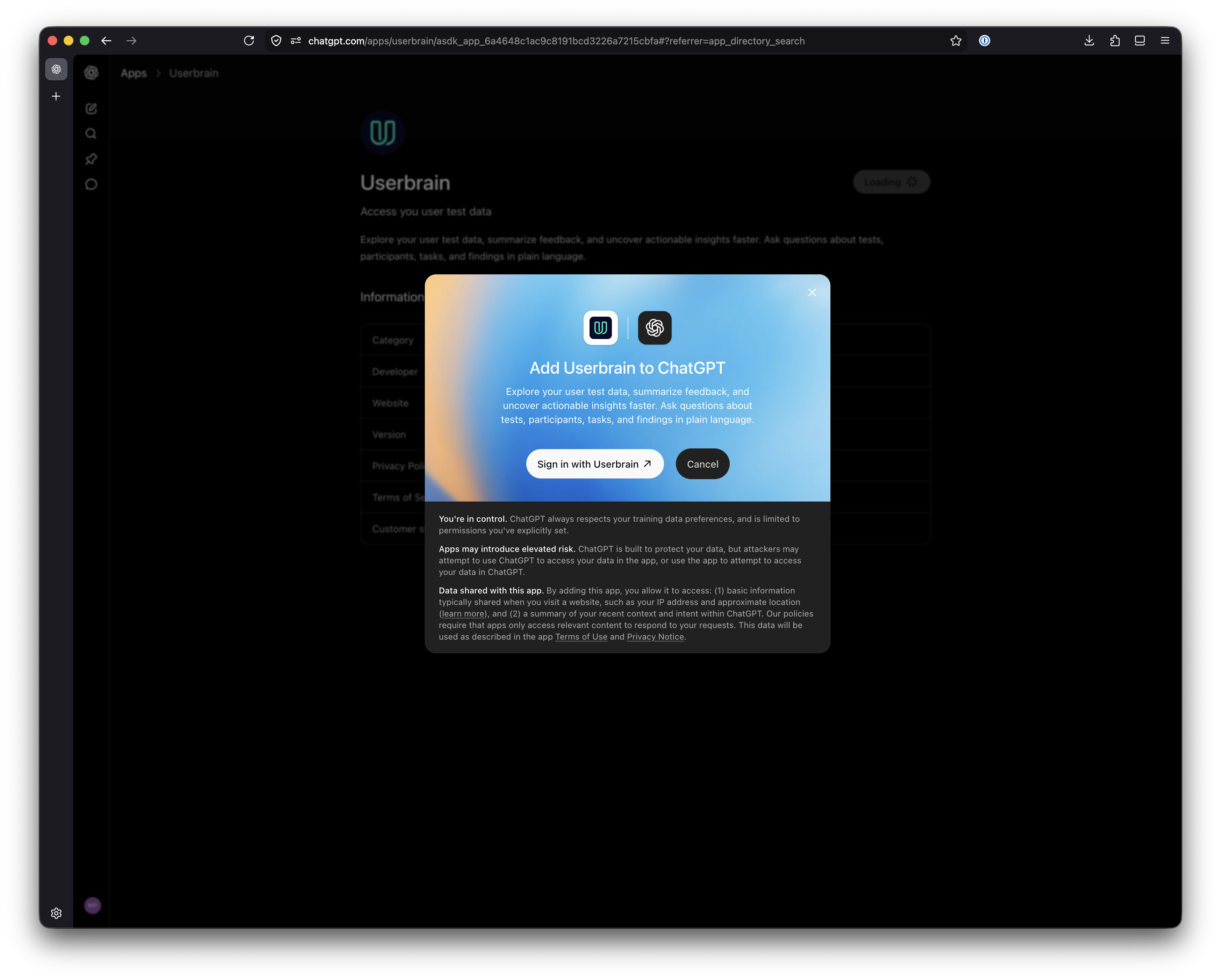
Once connected, start a new chat and ask a question about your tests to confirm it's working:
How to connect Userbrain to Claude
In Claude, open Settings and go to Connectors.
Change from the "Yours" to the "Discover" tab.
Use the search bar to search for Userbrain, then click Connect to Claude.
You'll be redirected to log in to Userbrain and authorize the connection. Sign in with your existing Userbrain account.
Once authorized, Claude can access your Userbrain data in any conversation. Try asking, "Show me all my Userbrain tests."
How to connect Userbrain to Claude Code
Claude Code is Anthropic's command-line coding agent. Whether you need to set anything up depends on how Claude Code signs in.
If you already connected Userbrain in Claude
If you've connected Userbrain through the Claude connector (see "How to connect Userbrain to Claude" above) and you sign in to Claude Code with the same Claude account, you don't need to do anything. Connectors from your Claude account are loaded into Claude Code automatically. Run /mcp inside Claude Code and you should see Userbrain listed as claude.ai Userbrain.
When you need to connect manually
Claude Code only picks up your Claude connectors when it signs in with a Claude account. You'll need to add Userbrain yourself if:
Claude Code authenticates with an API key instead of a Claude account
Claude Code runs through Amazon Bedrock, Google Vertex AI, or another model provider or gateway
Claude Code runs on a server or in automation without a Claude account login
Claude account connectors have been turned off in your environment
Add Userbrain with a single command
Run this in your terminal:
claude mcp add --transport http --scope user userbrain https://mcp.userbrain.com/mcp
Then start Claude Code, run /mcp, select ub, and choose Authenticate. Your browser opens so you can sign in to Userbrain and approve access. Once that's done, Claude Code can use Userbrain's tools in any project.
To check the connection at any time, run claude mcp list.
Important: don't use "userbrain" in the server name. Claude Code includes the name you choose in the client name it registers with our sign-in service (for example, Claude Code (userbrain)). For security reasons, client names containing "userbrain" are rejected. Use ub or any other name.
About --scope user: This makes Userbrain available in every project on your machine. Without it, Claude Code only makes the server available in the folder where you ran the command.
Running Claude Code on a server
Sign-in requires a browser. If Claude Code runs on a remote machine without one, either complete the sign-in once from a machine with a browser, or forward the sign-in callback port over SSH so the browser on your computer can finish the process.
Avoid duplicate connections
If you're signed in with a Claude account that already has the Userbrain connector and you also add it manually, Claude Code will show both. That works, but it duplicates tools. To keep things simple, remove the manual one with claude mcp remove --scope user ub, or turn one of them off in /mcp.
How to connect Userbrain to Microsoft Copilot
Microsoft provides the full process for connecting MCP servers within Microsoft Copilot Studio. Our guide covers the Userbrain-specific configuration needed to connect your Userbrain workspace to a Copilot agent.
Open Microsoft Copilot Studio.
Select Agents.
Select Create blank agent.
Give your agent a name, such as "Userbrain."
Add a description and any custom instructions you want the agent to follow.
Optional. Disable web search if you want the agent to prioritize Userbrain data over public web results.
Next add Userbrain MCP
Open the Tools section.
Select Add a tool.
Choose Model Context Protocol.
Enter the following values:
Server name: Userbrain
Server description: Connect Userbrain to search usability tests, review participant feedback, analyze recordings, retrieve study insights, and answer research questions directly from Microsoft Copilot.
Server URL:
https://mcp.userbrain.com/mcpAuthentication: OAuth 2.0
Discovery: Dynamic discovery
Next connect your Userbrain account
Open the new MCP connection.
Select Create connection.
Sign in to your Userbrain account.
Review the requested permissions and authorize access.
After the connection is complete, select Add and configure.
After provisioning finishes, the available tools and resources should appear automatically. If they don't, refresh the tool list.
Test the connection
Open the Try it panel and test the agent with a Userbrain query.
For example:
Find my latest tests.
Summarize tester feedback from the test XX.
Show recordings from my most recent test.
What tests were created this month?
The first time you use the agent, Microsoft might prompt you to open Connection Manager to complete your personal connection. This allows the agent to access Userbrain using your own permissions. After the connection is complete, retry your prompt.
Publish the agent
Open the Channels tab.
Choose the Microsoft channels where you want the agent to be available.
Select Publish.
Depending on your organization's Microsoft policies, an administrator might need to approve the agent before it becomes available to other users, or available for deployment in other Microsoft platforms and channels.
Connecting when your admin already added Userbrain
If an administrator on your team has already installed the Userbrain connector company-wide, you don't need to add it yourself. You just need to authenticate:
Go to Connectors (or Manage Connectors) in your AI tool's settings.
Find Userbrain in the Not Connected list.
Click Connect and log in to your Userbrain account to authorize access.
Your access is tied to your own Userbrain login, so you'll only ever see data your account already has permission to see.
Security and permissions
Authentication happens through OAuth: You log in to Userbrain directly, and no passwords are shared with your AI tool.
Access respects your existing Userbrain account permissions: Connecting to MCP doesn't grant you access to anything you couldn't already see in Userbrain.
The current version is read-only: Your AI tool can view tests, insights, tasks, and tester sessions, but it can't change anything in your account.
Known limitations
This first version of the Userbrain MCP is intentionally focused. It doesn't yet support:
Creating tests or ordering testers. You'll still do that in Userbrain directly.
Editing or deleting data. All five tools are read-only.
Every AI tool. Support currently covers MCP-compatible clients like Claude and ChatGPT. If your tool isn't listed above but supports custom mcp connectors, the same URL should still work.
Troubleshooting
ChatGPT
There is a known problem where sometimes ChatGPT memory forgets that it is connected to an MCP. The chat may give a response such as "Can't get new tests" or similar. This problem occurs with MCPs from other companies as well, not just Userbrain.
Solution: In a new Chat choose "+" and select the Userbrain plugin. Then continue with your prompt.
Copilot
You my not be able to create an AI Agent, customize an AI Agent or deploy it to certain platform & channels based on (1) your specific Microsoft license and (2) your organizations security settings.
Solution: Please consult with Microsoft for limitations and your organization for internal settings & deployment.